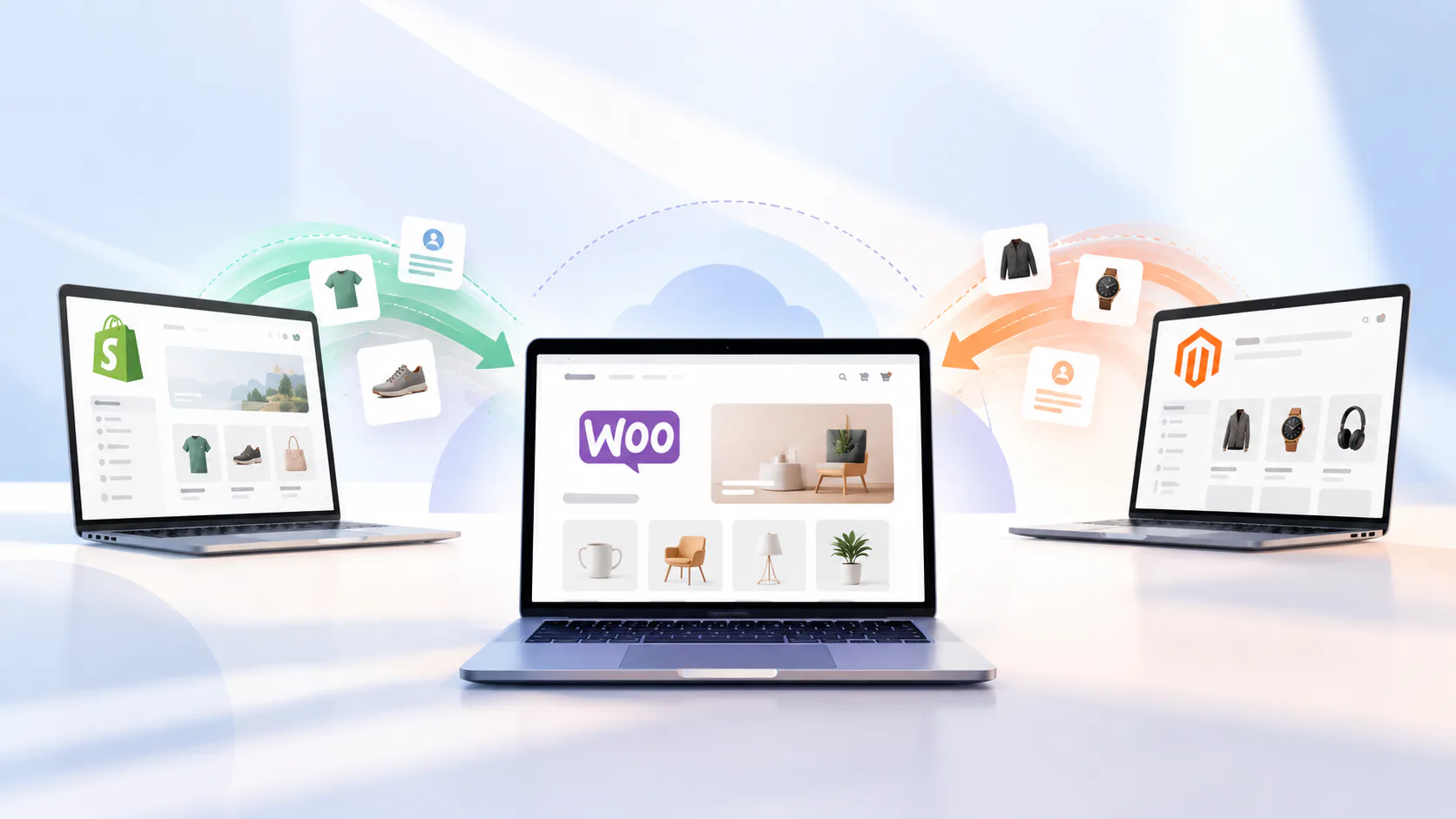
Moving an online store from one platform to another sounds risky, and most store owners put it off for exactly that reason. The fear is understandable. Years of products, customer accounts, order history and search rankings all live inside the current platform, and nobody wants to be the person who lost them. The good news is that a well planned move to WooCommerce is a structured process, not a leap of faith. This guide walks through what actually moves, what needs extra attention, and the order of steps that keeps your store, your data and your search visibility intact, whether you are coming from Shopify or Magento.
Key Takeaways
– Products, categories, customers and order history can all move to WooCommerce in a structured process. You do not start from zero.
– A few things need extra work, mainly customer passwords, app based features, reviews and saved payment details.
– URL redirects are the single most important step for protecting your search rankings.
– Build and test on a staging site first, so your live store keeps selling until the moment you switch.
Why Store Owners Move to WooCommerce
Most migrations start with a specific frustration rather than a general wish for something new. On Shopify, it is often cost: monthly plan fees, paid apps for features that feel like they should be included, and extra transaction fees when a store uses a payment provider other than Shopify Payments. As revenue grows, those costs grow with it, and founders start asking what they are actually paying for.
On Magento, the trigger is usually different. Magento is powerful, but it is demanding to host, update and develop for. Smaller teams running Magento often find they are paying for enterprise scale capability they do not use, while every change needs specialist developer time. Stores still running Magento 1, which reached end of life in 2020, face a more urgent version of the same question, because they no longer receive official security updates.
WooCommerce answers both situations in a similar way. It is open source and runs on WordPress, so you own the code and the data, choose your own hosting and payment gateway, and pay no platform fee on your sales. It also sits inside the most widely used content management system on the web, which makes content, SEO and blogging far more natural than on most dedicated commerce platforms.
That does not make it the right answer for everyone. Very large catalogs with complex multi region requirements can still be better served by Magento. But for many small and mid sized stores, moving to WooCommerce is about regaining control over cost and flexibility, not chasing something new.
The Biggest Myth: “You Will Lose Everything”
The most common reason store owners delay a migration is the belief that switching platforms means starting over. It does not. Your products, categories, customer records and order history are data, and data can be exported, transformed and imported. Every major platform provides ways to export it, and WooCommerce has a built in product importer plus a mature ecosystem of migration tools for everything else.
What is true is that a migration is not a single click. Data needs mapping from one structure to another, some features need rebuilding rather than copying, and a small number of things cannot move at all for security reasons. The stores that have painful migrations are almost always the ones that skipped planning, not the ones that chose the wrong platform. Knowing in advance what moves and what does not is what turns the process from stressful into routine.
What Moves, What Needs Work, and What Stays Behind
What moves cleanly
– Products, including titles, descriptions, prices, SKUs, stock levels and images
– Product variations, such as sizes and colors, which map to WooCommerce variable products
– Categories and collections, which become WooCommerce product categories
– Customer records, including names, email addresses and saved addresses
– Order history, so returning customers and your own reporting keep their context
– Blog posts and static pages such as About, Shipping and Returns
What needs extra work
– Customer passwords. Platforms store passwords in encrypted forms that cannot be transferred, so customers will need to set a new password the first time they log in. A clear, friendly email before launch turns this from a support problem into a non event.
– App and extension features. Anything your current store does through a paid app, such as reviews, loyalty points, product bundles or advanced shipping rules, needs an equivalent WooCommerce plugin or custom development.
– Product reviews. Reviews usually live inside a third party app rather than the platform itself, so they are exported from that app and imported separately.
– Custom fields and metadata. Extra product information stored in Shopify metafields or Magento custom attributes needs to be mapped to WooCommerce custom fields deliberately.
– Order numbers. If you want new orders to continue your existing numbering, that needs to be configured rather than assumed.
What usually stays behind
– Your theme. Themes are platform specific. Your design can be recreated, and often improved, but the theme itself does not move.
– Saved payment details. Card details are held by your payment provider, not your store. For stores with subscriptions or saved cards, moving them needs coordination with the payment gateway and is not always possible.
– Platform specific features. Things like Shopify gift cards or Shopify Payments settings belong to that platform, and need a WooCommerce equivalent set up fresh.
Your analytics history is the exception in a good way. It lives in your analytics account, not in your store, so it stays exactly where it is.
Before You Start: Preparing for the Migration
Most migration problems are caused by decisions that were never made, not by technical failures. Before any data moves, settle these questions with everyone who has a stake in the store:
– Which apps and features does the store genuinely rely on, and which can be retired?
– Will product URLs keep the same names, or is this a chance to clean them up?
– Which payment gateways and shipping methods will the new store use?
– Where will the WooCommerce store be hosted, and who will maintain it?
– When is the quietest trading period for the final switch?
– Who will test the new store, and what counts as ready to launch?
Take a full backup of your current store data before you begin, even though the migration itself does not change the old store. It gives you a fixed reference point to check the migrated data against.
The Migration, Step by Step
The order of these steps matters. Each one depends on the step before it, and following them in sequence is what allows the live store to keep trading while the new one is built.
Step 1: Audit your current store
Start with a complete inventory of what exists today: the number of products and variations, categories, customer accounts, orders, pages, blog posts and installed apps. Export a full list of your current URLs as well, including product, category and content pages. This inventory becomes your checklist later. If the new store has fewer products or pages than the audit says it should, you will know immediately rather than finding out from a customer.
Step 2: Set up WooCommerce on a staging site
Build the new store on a staging site, a private copy that customers cannot see, rather than on your live domain. Install WordPress and WooCommerce, configure your hosting, and set up core settings such as currency, tax rules, shipping zones and payment gateways before importing any data. Getting these foundations right first means imported products and orders land in a store that already behaves the way it should.
Step 3: Migrate products and categories
Products usually move first, because everything else refers to them. Smaller catalogs can often be handled with the product CSV importer built into WooCommerce, once the exported file has been reformatted to match WooCommerce’s column structure. Larger or more complex catalogs, especially those with many variations or custom attributes, are usually better handled with a dedicated migration tool or a custom script. After importing, spot check a sample of products in every category: prices, stock, variations, images and descriptions.
Step 4: Migrate customers and orders
Once products exist, customers and orders can follow, because each order needs to link both to a customer and to the products it contains. Import customer accounts first, then order history. Check that orders show the correct customer, products, totals and statuses. This is also the stage to prepare the message that tells returning customers about password resets, so it is ready before launch.
Step 5: Rebuild the design and functionality
With data in place, rebuild the storefront. This is where most of the creative work happens: a theme that reflects your brand, page layouts, navigation, and the plugins or custom features that replace the apps you relied on before. It is also the best opportunity in years to fix things that have annoyed you or your customers, such as a slow checkout or a cluttered product page. Resist the urge to add every plugin you can find. A leaner store is faster and easier to maintain.
Step 6: Map URLs and set up redirects
Every old URL that search engines and customers know about needs to point to its new equivalent with a permanent 301 redirect. Use the URL list from your audit and map each old address to its new one. This step deserves more care than any other, because it is what protects the search rankings your store has built over time. The SEO section below covers it in detail.
Step 7: Test everything
Before launch, test the new store the way a customer would use it. Place test orders with each payment method and shipping option. Create an account, reset a password, apply a discount code, and check that order confirmation emails arrive and look right. Test on mobile as well as desktop, since that is where many of your customers shop. Finally, compare product, customer and order counts against your original audit.
Step 8: Launch and monitor
Choose a quiet trading period for the switch. Freeze product and content changes on the old store, run a final import of any orders placed since the first migration, then point your domain to the new store. For the first few weeks, watch the essentials closely: orders coming through, payment confirmations, 404 errors, and search visibility in Google Search Console. Most post launch issues are small and easy to fix when they are caught early.
Migrating From Shopify: What Is Different
Shopify makes exporting products, customers and orders straightforward through CSV exports in its admin, which gives a Shopify to WooCommerce migration a solid starting point. Most of the work is in what surrounds that data.
Shopify uses fixed URL patterns, with products under /products/ and collections under /collections/, while WooCommerce uses /product/ and /product-category/ by default. Every one of those URLs needs a redirect. Shopify collections, including automated collections built on rules, need to be recreated as WooCommerce categories or filtered views. Features delivered through Shopify apps, from reviews to subscriptions, need WooCommerce equivalents chosen before the build starts rather than discovered during testing.
It is also worth reviewing your payment setup. If you have been paying Shopify’s extra transaction fee for using a gateway other than Shopify Payments, WooCommerce removes that platform layer entirely, and you pay only your payment provider’s own fees.
Migrating From Magento: What Is Different
Magento stores tend to hold more complex data, so a Magento to WooCommerce migration usually needs more mapping work. Configurable products become WooCommerce variable products, and custom attribute sets need to be reviewed and mapped to WooCommerce attributes or custom fields. Magento’s multi store and multi language setups have no direct one to one equivalent, so they need a deliberate plan, often using dedicated multilingual or multi currency plugins.
Magento URLs frequently end in .html and can include category paths, which means the redirect map is often larger and less predictable than on Shopify. Customer passwords will need resetting, as with any platform change.
On the positive side, Magento stores often carry significant hosting and maintenance costs, and a well built WooCommerce store can reduce that operational burden, provided the catalog size and complexity genuinely fit WooCommerce. If they do not, staying on Magento and improving what you already have may be the better decision, and a good migration partner should tell you so.
Protecting Your SEO During the Move
Search rankings are tied to URLs. When a URL changes without a redirect, search engines see a missing page, and the ranking that page earned starts to fade. That is why redirects matter more than almost any other part of a migration.
– Map every old URL to its closest new equivalent, including products, categories, blog posts and pages.
– Use 301 redirects, which tell search engines the move is permanent.
– Redirect to the most relevant page, not the homepage. Blanket redirects to the homepage are treated much like missing pages.
– Carry over page titles, meta descriptions and product descriptions rather than rewriting everything at once, so search engines see continuity.
– Submit the new XML sitemap in Google Search Console as soon as the store goes live.
– Watch for 404 errors and crawl issues in the weeks after launch, and fix them quickly.
Some short term movement in rankings after a migration is normal while search engines process the changes. A well redirected store generally settles, and the cleaner structure and faster pages that come with a good rebuild can help it improve over time.
Do It Yourself, Use a Tool, or Hire a Team?
There are three realistic ways to migrate, and the right one depends on the size and complexity of your store.
Doing it yourself with CSV exports and the WooCommerce importer can work for a small, simple catalog with few customizations. It costs time rather than money, but it puts the whole process, including redirects and testing, on your own shoulders.
Automated migration tools, such as Cart2Cart or LitExtension, transfer products, customers and orders between platforms and handle much of the data mapping for you. They are a strong option for the data itself, but they do not rebuild your design, replace your apps or plan your redirects.
A development partner handles the full process: planning, data migration, design, functionality, redirects, testing and launch. It is the most complete option and makes the most sense for stores with large catalogs, custom features or significant revenue at stake. If you go this route, look for a team that has handled platform migrations before and can explain exactly how they will protect your data and search rankings. Platform migration is part of our WooCommerce development services, alongside full store builds across our wider ecommerce solutions.
Your WooCommerce Migration Checklist
– Audit products, customers, orders, pages, apps and URLs
– Decide which features to keep, replace or retire
– Back up all current store data
– Set up WooCommerce on a staging site with hosting, tax, shipping and payments configured
– Import products and categories, then spot check
– Import customers, then order history, then verify totals
– Rebuild the design and replace app features with plugins or custom code
– Map every old URL to a new one with 301 redirects
– Test orders, payments, emails, accounts and mobile checkout
– Prepare the password reset email for returning customers
– Freeze changes, run a final sync, and switch the domain
– Submit the new sitemap and monitor orders, 404 errors and rankings
Conclusion
Migrating to WooCommerce is not about starting over. It is about moving what you have already built onto a platform you own and control: your products, your customers, your order history and your search visibility. The stores that migrate smoothly are the ones that plan the move in the right order, take redirects seriously, and test before they switch. If you are weighing a move from Shopify or Magento and want a clear view of what it would involve for your store, talk to our team.
Frequently Asked Questions
Will I lose my data when migrating to WooCommerce?
No. Products, categories, customers and order history can all be exported from Shopify or Magento and imported into WooCommerce. A few items, such as customer passwords and saved payment details, cannot transfer for security reasons and need a simple workaround.
Will migrating to WooCommerce hurt my SEO?
Not if the migration is planned properly. Mapping every old URL to its new equivalent with 301 redirects, keeping your existing content and metadata, and submitting a new sitemap protects the rankings your store has earned. Small, temporary fluctuations are normal while search engines process the changes.
Will my customers need to create new accounts?
No. Their accounts move across with their order history. They will usually need to set a new password the first time they log in, because passwords cannot be transferred between platforms. A short email before launch explains this.
How long does a WooCommerce migration take?
It depends on catalog size, the number of custom features and how much design work is involved. A small, simple store moves much faster than a large catalog with custom functionality. An audit of your current store is the most reliable way to estimate it.
Will my store go offline during the migration?
It should not. The new store is built and tested on a staging site while the old one keeps trading. The final switch happens during a quiet period, with a last sync of recent orders, so downtime is minimal.
Can I migrate from Magento 1 to WooCommerce?
Yes. Magento 1 no longer receives official security updates, which makes migration a priority for stores still running it. The process follows the same steps, with extra care for data mapping and redirects.
What happens to my Shopify apps?
Shopify apps do not transfer. Each feature they provide needs a WooCommerce plugin or custom development as a replacement, which is why listing your apps during the audit matters.
Is WooCommerce cheaper than Shopify?
WooCommerce has no platform subscription or platform transaction fees, but you pay for hosting, premium plugins and maintenance. For many growing stores the long term cost is lower, but the right comparison depends on your specific setup.